How It Works: From Your Phone to a Useful Job Message
Your AI receptionist answers the calls you forward, asks your job questions, and sends the details for your next move. Try the browser demo, then set up your business rules and test the handoff yourself.
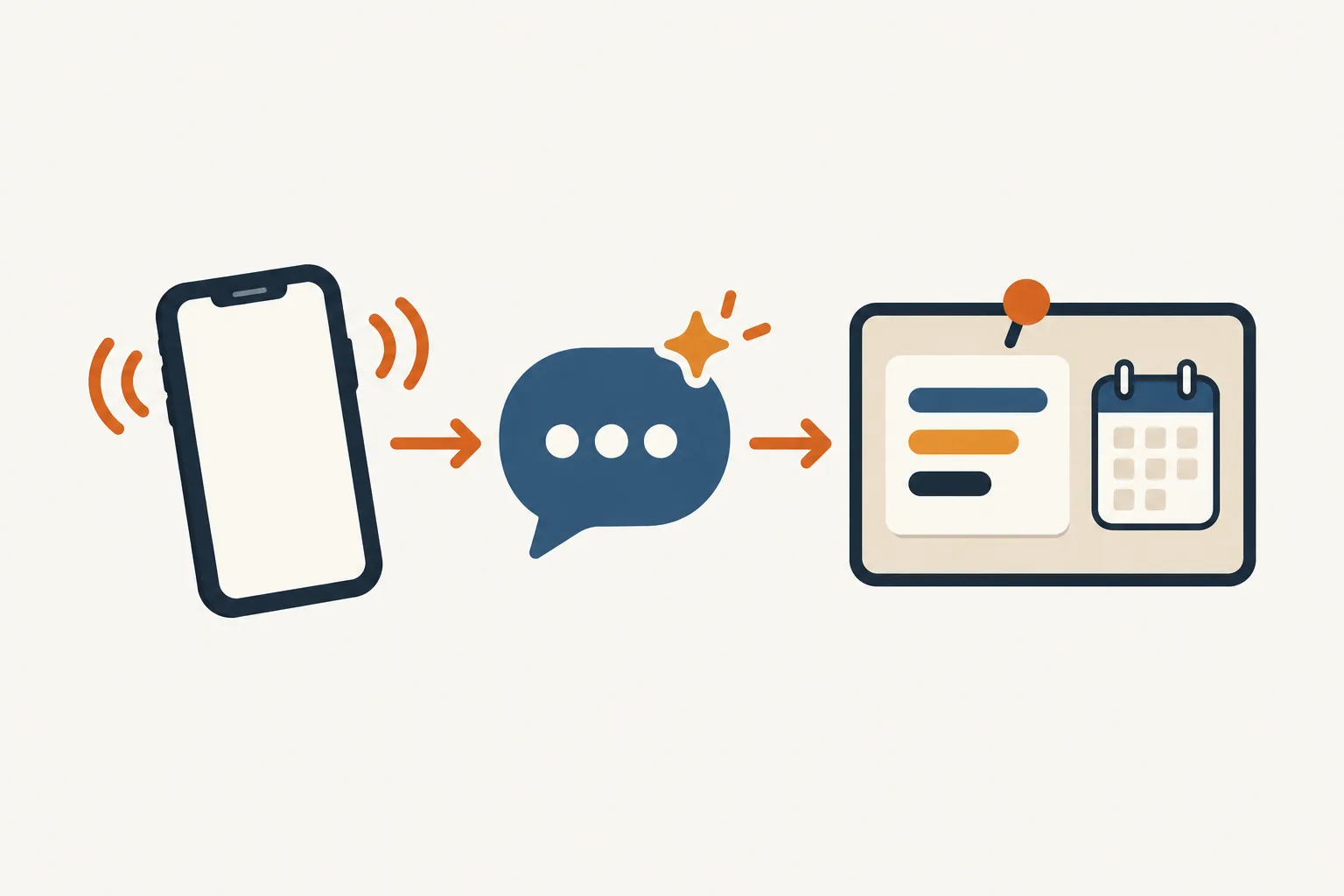
Four steps
- Forward your numberChoose all calls or coverage for unanswered, busy, or after-hours calls using our forwarding guide.
- Answer as your businessYour receptionist announces the virtual assistant and recording notices, then asks about the caller's request.
- Receive messages and bookingsCheck email and app push alerts, review call details, and see appointments booked into Google Calendar.
- Test before going livePlace a test call, check the result, and adjust your instructions before sending real callers through.
Keep your number and choose which calls to forward
You keep your business number and choose full, no-answer, busy, or after-hours forwarding. We supply a local number and instructions for your carrier or phone system.
- Full coverage
Forward all business calls when you want the receptionist answering first.
- Overflow coverage
Send unanswered or busy calls through while your crew keeps working.
- After-hours coverage
Give evening callers a way to explain the job they need.
Full details
Forwarding sends calls from the number your customers already have to the local number we provide. Use the guide for your carrier or phone system to choose when that happens. You might answer personally during office hours and send unanswered calls to your receptionist during site visits.
Prepare the forwarding settings during setup, then check the route with a test call before going live. Keep a backup number or voicemail destination ready. If your plan lapses, that is where calls go. Read the monthly coverage details while choosing how much of your phone traffic to forward.
Hear the disclosure, job questions, and urgent call handoff
Your receptionist identifies itself as a virtual assistant, announces recording, and asks questions using your business rules. It captures the request, checks urgency, and follows your instructions for the next step.
- Clear opening
Callers hear that a virtual assistant is answering and recording the conversation.
- Job intake
Your services, area, and questions guide what the receptionist asks next.
- Urgent handoff
Your on-call person hears a summary before accepting a warm transfer.
Full details
The conversation starts with the virtual assistant and recording notices; those stay on. Your receptionist then works from your onboarding answers and website. An estimate caller can explain the project, while a supplier can leave a delivery update for an active job.
When your rules mark a call urgent, the receptionist can warm transfer or page your on-call person in the order you set. For a warm transfer, that person hears a short summary and presses 1 to accept. A question outside the supplied information becomes a message for your callback. Hear the opening and intake in a practice contractor conversation.
Get email and app alerts with the call record
You receive an email and app push notification for each call, with a summary, urgency tag, transcript, and recording. The dashboard holds your call records, usage, and settings.
- Call alerts
Read the request and urgency tag before deciding who should respond.
- Full context
Open the transcript or recording when the summary needs a closer look.
- Appointment choice
Book into Google Calendar or collect the details for your callback.
Full details
Your call alert gives you the message and the underlying conversation to review. A daily digest also arrives by email, so you can look over the day's calls together. In the dashboard, check usage alongside recordings and transcripts.
Choose appointment booking into Google Calendar if you want the receptionist to schedule estimates. If you review projects before offering a visit, have it collect callback details instead. You can enter relevant summaries into your job software yourself; direct connections to contractor software are not live yet. See the estimate booking workflow for the appointment side of a call.
Test your call rules and change them in plain words
You make a test call before going live and check the greeting, intake, and resulting message. Later, change settings by telling the AI what your business needs in plain words.
- Try a real request
Use a typical estimate question to check your intake instructions.
- Check the result
Compare the summary with your request before putting forwarding into service.
- Adjust your rules
Tell the AI when services, hours, or urgent contacts change.
Full details
Testing lets you check how your receptionist uses the information you supplied. Call with an estimate request inside your service area, then ask about work you do not offer. Review the message and listen to the recording to see where your instructions need more detail.
Check your urgent contact order and price policy too. Tell the AI in plain words when a rule needs changing, then try the relevant request again. A card must be on file before call forwarding goes live. Request a free trial to prepare your own receptionist and forwarding setup; we'll email your sign-in link when it's ready.
Questions
How does the AI learn what my contracting business does?
We use your website and an onboarding chat with about 10-15 questions to learn your services, area, hours, and policies. Include work you turn down and the details you need from callers. Your answers also establish what counts as urgent and who should receive those calls.
Can I keep answering some calls myself?
Yes. Forwarding can cover only unanswered calls, busy calls, or calls outside your hours. That lets you answer directly when available and use the receptionist around site visits or crew work. We provide instructions for your carrier or phone system so you can prepare the route and test it.
What will my on-call person hear during an urgent transfer?
For a warm transfer, your on-call person hears a short summary first and presses 1 to take the call. You set the contact order during setup. You can also choose a page to the on-call person, with urgency determined by the rules you provide.
Does it record calls, and can I turn off the notice?
Calls are recorded, and the opening tells callers about the recording and the virtual assistant. Those notices cannot be disabled. The recording and transcript accompany the call summary, giving you a way to check what was said before responding to a request or updating your instructions.
Where do I check messages after leaving a job site?
Check your email or app push alerts for the call summary, urgency tag, transcript, and recording. You can also open the dashboard to review calls and usage. The daily email digest brings the day's call information together when you are ready to go through it.
Can I change the receptionist after setup?
Yes. Use plain words to tell the AI how your settings should change, such as revised hours or a different urgent contact. Keep its service area and price policy current too. After changing a rule, place a test call that checks the part of the conversation you updated.
Try the conversation before setting up forwarding
Open the browser demo and make an estimate or supplier call. Then request a free trial to set the rules for your own business.